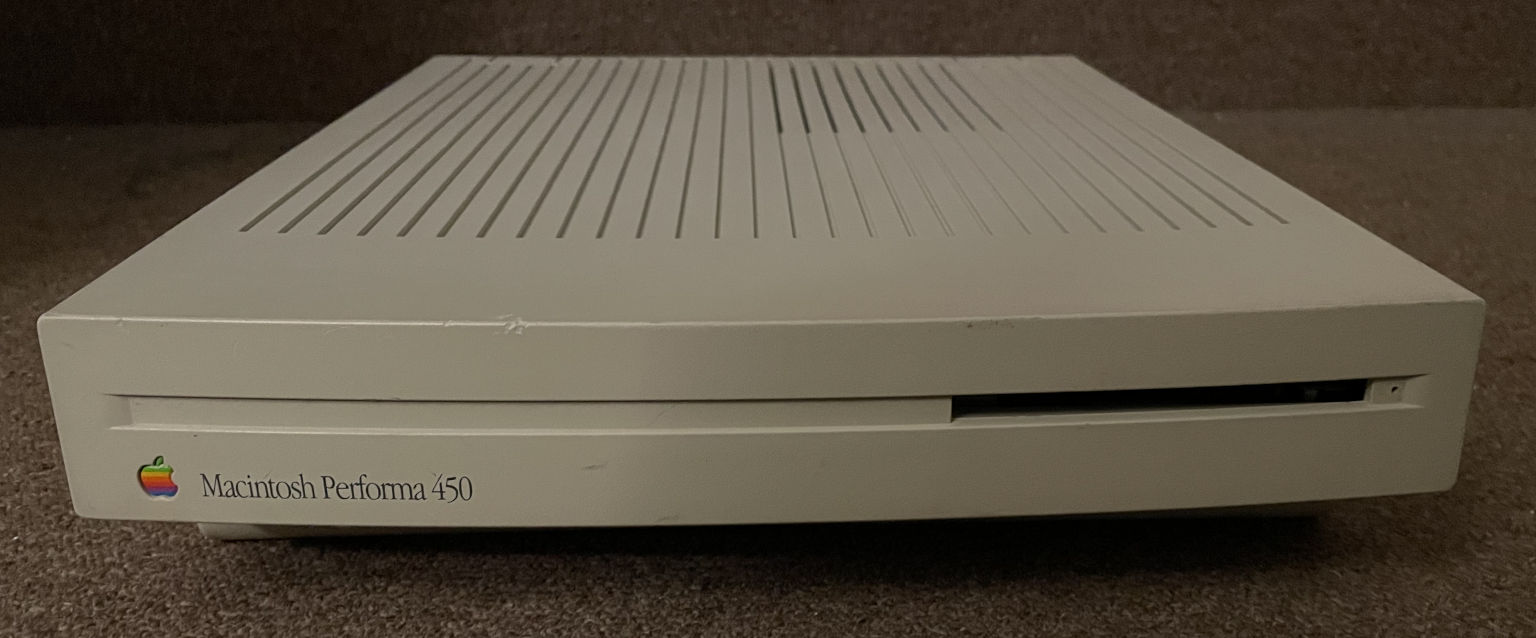
Yesterday, for the first time in about a year, I tried powering on the Macintosh Performa 450 (LC III) from my past writeup about Apple’s backwards capacitor.

It didn’t work. The screen was black, it played the startup sound, and then immediately followed up with the “Chimes of Death”. Nothing else happened from that point on. Here’s what it sounded like:

This was a little frustrating because last year I had already replaced all of the capacitors and cleaned where they had leaked, so I didn’t expect to encounter any problems with it so soon. The machine had worked fine the last time I’d tried it! But despite all that, something was failing during the power-on tests in Apple’s ROM, prompting it to play the chimes of death. I remembered that people have been working towards documenting the Mac ROM startup tests and using them to diagnose problems, so I decided to give it a shot and see if Apple’s Serial Test Manager could identify my Performa’s issue. Where was the fault on this complicated board? Sure, I could test a zillion traces by hand, but why bother when the computer already knows what is wrong?

Read the rest of this entry

As part of my work toward an upcoming post about a lost piece of very obscure Mac history that has finally been found, I’ve been playing around with old Apple-branded SCSI hard drives made by Quantum and Conner in the 1990s. What I’m about to describe is already common knowledge in the vintage computing world, but I thought it would be fun to share my take on it anyway.

What I’m talking about is how a lot of these hard drives just refuse to work anymore. This is very common with old Quantum ProDrive models, like the LPS or the ELS. The drive spins up, you don’t hear the expected pattern of click sounds at startup, and then after a few seconds, it spins back down.

Read the rest of this entry

There have been some past rumblings on the internet about a capacitor being installed backwards in Apple’s Macintosh LC III. The LC III was a “pizza box” Mac model produced from early 1993 to early 1994, mainly targeted at the education market. It also manifested as various consumer Performa models: the 450, 460, 466, and 467. Clearly, Apple never initiated a huge recall of the LC III, so I think there is some skepticism in the community about this whole issue. Let’s look at the situation in more detail and understand the circuit. Did Apple actually make a mistake?

I participated in the discussion thread at the first link over a decade ago, but I never had a machine to look at with my own eyes until now. I recently bought a Performa 450 complete with its original leaky capacitors, and I have several other machines in the same form factor. Let’s check everything out!

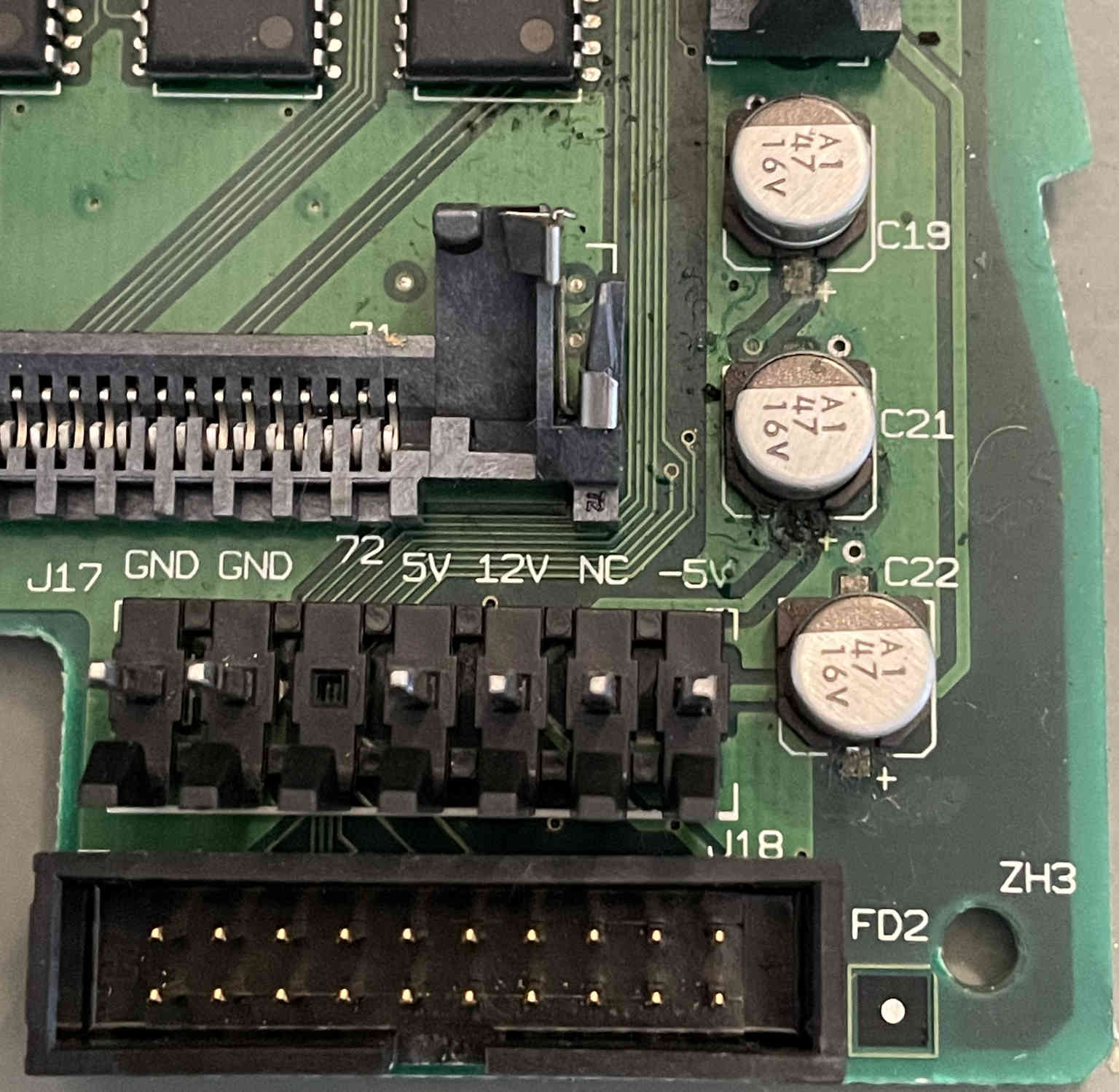
Here’s the affected section of the board before I removed the original capacitors. You can see that all three of these caps (C19, C21, and C22) have their negative side pointing upward, matching the PCB silkscreen that has the + sign at the bottom.

Read the rest of this entry

A couple of weeks ago I found a really good deal on a Socket AM4 motherboard that supports the newest AMD Ryzen CPUs. The motherboard is an ASRock A520M/ac. It’s a very basic motherboard which doesn’t appear to be sold by any of the usual retailers anymore, but I couldn’t pass up on the deal, especially with the potential it had for being a fun learning project.

The reason I got such a good deal on it was because it was sold in non-working condition, but the seller and I both had a pretty good hunch about what was wrong. The seller said that they had bought it as an open box unit, but couldn’t get it to POST. However, they had only tried CPUs in it that were not compatible with the original BIOS version. I decided to have some fun and see if that was indeed the only problem. I didn’t have an older CPU available to easily test that theory. I did have a new Ryzen 7 5700G, which is only supported by BIOS revision P1.60 or newer.

Typically, there are several simple options for using a newer CPU with a motherboard that needs a BIOS update in order to support it:

  1. Borrow an older CPU just long enough to install an updated BIOS. AMD has a program for handling this if you don’t have an easier way to borrow one. I don’t know if this is a valid option if I’m not the original buyer of the motherboard. AMD’s documentation requirements in order to participate seem pretty stringent based on the linked instructions.
  2. Use the “USB BIOS Flashback” feature to update the motherboard’s BIOS even without a CPU installed. This particular motherboard doesn’t support that option.
  3. Send it back to the retailer or manufacturer to update it for you. I have no idea which retailers/manufacturers might do this. There’s no way that Amazon, for example, would provide this service.

It’s possible that ASRock would have tried to help me out if I had asked, but I decided to turn this into a fun personal challenge instead: upgrade the BIOS on my own without using an older CPU.

Read the rest of this entry

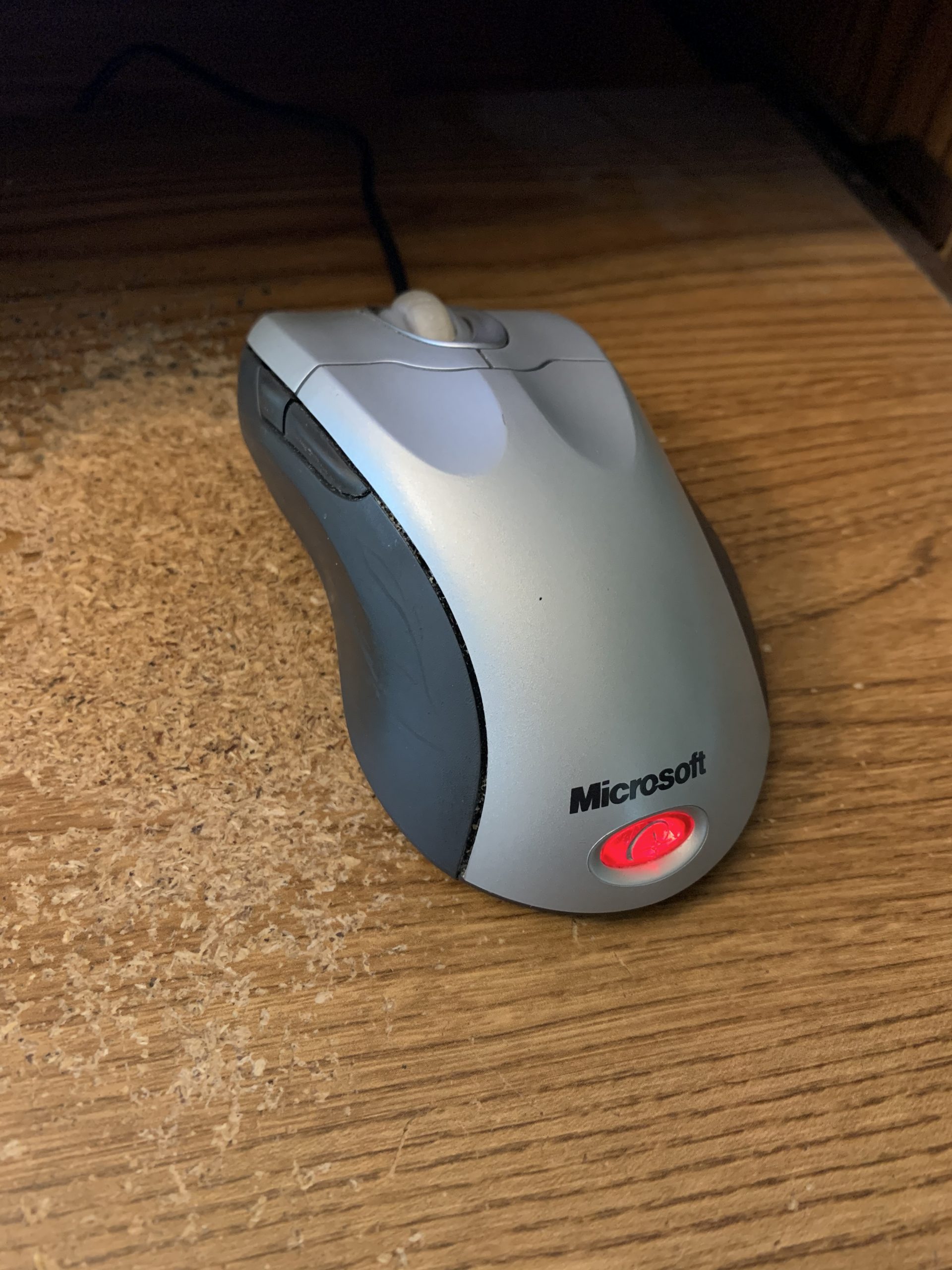
My favorite mouse is my Microsoft IntelliMouse Explorer 4.0. I bought my first one back in 2009. I love how the scroll wheel smoothly spins. I’ve never had another mouse like it. I want to keep using it forever and ever.

Read the rest of this entry

Last week, my main Linux computer died. It has an ancient Intel DX58SO motherboard from 2009 with an LGA 1366 CPU socket. A couple of years ago, I replaced its original Core i7-920 processor with a Core i7-980 from eBay. Considering its age, it’s actually a pretty powerful computer: six 3.33 GHz cores.

Anyway, here’s what happened. I was working, and just as I was about to join a meeting, I heard all of the fans in the computer stop spinning. The power LED remained on, but other than that, the machine looked like it was powered off. I tried power cycling it, but it was completely dead. After power cycling, the power LED wouldn’t turn on either.

Read the rest of this entry

, , , , , , ,

Long story short: Dell recently released a bad BIOS update (3.9.0) for the Inspiron 3650 that seemingly bricked people’s computers. Luckily somebody discovered an easy fix you can do yourself by changing a jumper on the motherboard. If you’re interested in hearing how I fixed it in a much more convoluted way before this info about the jumper was available, keep on reading.

Read the rest of this entry

A while ago, I put 16 GB of RAM into one of my computers. The computer is using a Foxconn P55MX motherboard with a Core i5 750. It’s old and could probably be replaced, but it still works for what I need.

Here’s the interesting part. This motherboard doesn’t officially support 16 GB of RAM. The specs on the page I linked indicate that it supports a maximum of 8 GB. It only has 2 slots, so I had a suspicion that 8 GB sticks just weren’t as common back when this motherboard first came out. I decided to try anyway. In a lot of cases, motherboards do support more RAM than the manufacturer officially claims to support.

I made sure the BIOS was completely updated (version 946F1P06) and put in my two 8 gig sticks. Then, I booted it up into my Ubuntu 16.04 install and everything worked perfectly. I decided that my theory about the motherboard actually supporting more RAM than the documentation claimed was correct and forgot about it. I enjoyed having all the extra RAM to work with and was happy that my gamble paid off.

Then, a few months later, I tried to boot into Windows 10. I mostly use this computer in Linux. I only occasionally need to boot into Windows to check something out. That’s when the fun really started.

Read the rest of this entry

At work, I was trying to restore a Lenovo IdeaPad Z510 back to the factory default configuration after Ubuntu Linux had been installed on it. I wanted to restore it back to the factory default Windows 8.1 scheme. I noticed that Lenovo had a “One-Key Recovery” (OKR) option, so I decided to try it. I pressed the NOVO button and chose the system recovery option. When I tried to run system recovery, it gave me this error message:

The program cannot restore the system partition because its structure is incorrect. You may have to recreate the partition to continue.

I wasn’t the one who set the laptop up originally, but I was pretty sure that since Ubuntu was installed, it had changed something about the partition layout and broken something. So I booted into an Ubuntu Live USB stick and used GParted to check it out. Sure enough, a few extra partitions had been created for ext4 and swap. It appeared that the main Windows partition had been shrunk, and the extra Linux partitions had been created in the space made available. I deleted the extra Linux partitions and resized the main Windows partition to fill up the available space.

Unfortunately, that still didn’t fix it. Maybe it would in some people’s cases, but something was still wrong with the partition layout. I started digging into the recovery partitions on the laptop’s hard drive and found a file that contained info about the partition layout. It was on the partition called PBR_DRV, and the path to it was OKRBackup\Factory\Info.ini. This file contained info about the location, size, and options for each partition.

I was able to use the information in this file, combined with the “gdisk” command while booted into an Ubuntu Live USB, to fix everything. It turned out that all of my partitions were the correct size, but the “Attributes” from this file didn’t match — several of the partitions were missing the “don’t automount” flag.  I was able to use gdisk to set that flag on partitions that needed it in the expert menu. Also, for some reason, the MSR partition had been deleted, so I was able to recreate it (I created it as a new unformatted partition and set the label in GParted) and set the proper “Id” and “Type” GUID values using gdisk as well. I don’t know if Ubuntu deleted it, or if the person who installed Ubuntu manually deleted it.

For some reason, the partitions were numbered incorrectly after I did all of this, so I was able to use the “sort” function in gdisk to number the partitions properly afterward.

After I confirmed that the labels, locations, sizes, “Id”/”Type” GUIDs, and attributes all matched between Info.ini and the actual disk, I saved my changes to the partition table and tried running the system recovery. This did the trick and everything worked fine!

I didn’t write down paths or anything while I was doing this, and I had to do some Googling to find the names again, so I might be slightly off on some of the filenames. But what I described is pretty much what I did. For future reference, I did write down the following information about the partitions, in case anybody might find this useful:

  • sda1: WINRE_DRV
    • Start sector = 2048
    • End sector = 2050047
    • Size = 1000 MB
  • sda2: SYSTEM_DRV
    • Start sector = 2050048
    • End sector = 2582527
    • Size = 260 MB
  • sda3: LRS_ESP
    • Start sector = 2582528
    • End sector = 4630527
    • Size = 1000 MB
  • sda4: MSR
    • Start sector = 4630528
    • End sector = 4892671
    • Size = 128 MB
  • sda5: Windows8_OS
    • Start sector = 4892672
    • End sector = 1874599935
    • Size = 891.55 GB
  • sda6: LENOVO
    • Start sector = 1874599936
    • End sector = 1927028735
    • Size = 25 GB
  • sda7: PBR_DRV
    • Start sector = 1927028736
    • End sector = 1953523711
    • Size = 12.63 GB

I recently ran into a problem upgrading a computer from Windows 7 to Windows 10. I received an error message with the following error code: 0x800703ed

It turns out this system was a dual-boot Linux and Windows system. I was actually booting to a different hard drive which had GRUB installed, and then GRUB was booting to my Windows drive. I fixed the problem by switching my BIOS boot order to boot directly to the drive with Windows 7 installed and then repeated the update process. This resulted in a successful Windows 10 upgrade. After the upgrade was complete I was able to change my BIOS boot order back to the way it was before, and now everything works fine.